




In large organizations and infrastructures, it’s fairly common to use multiple configuration management tools. There are many reasons for this. Different teams may have different preferences, some tools suit certain use cases better than others, and existing systems can come with their own limitations.
Whatever the reason, the tools don’t have to work in isolation.
In this post, we’ll show how to run Ansible playbooks on CFEngine-managed hosts using Mission Portal.
We’ll install Ansible with the install-ansible Build module, add a playbook with the ansible-playbook-dispatcher module, and verify that it actually runs.
Installing Ansible
To run Ansible playbooks on our CFEngine-managed hosts, we first need to install Ansible on them.
The install-ansible build module, written by Craig Comstock, makes this easy.
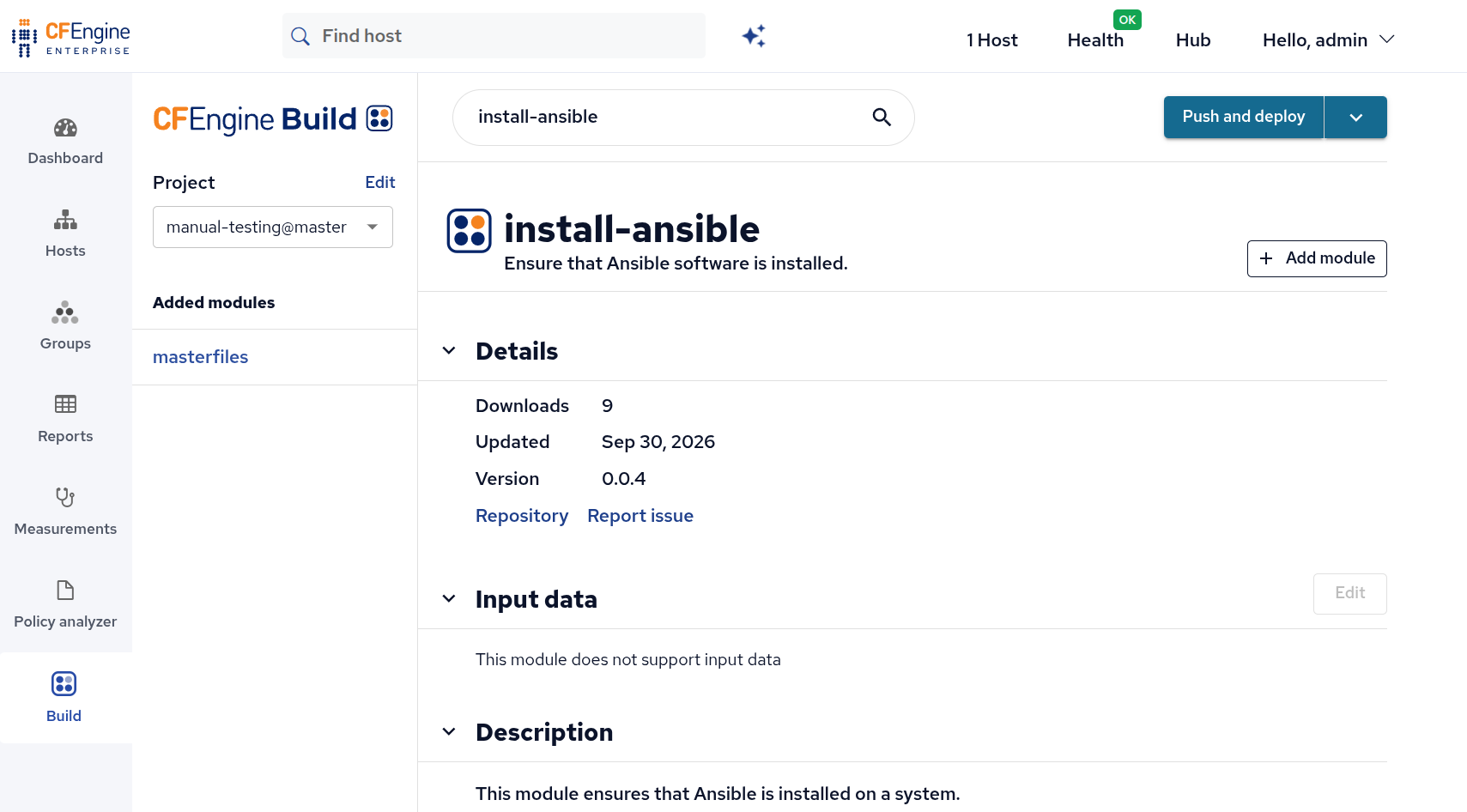
In Mission Portal, open the Build app from the lower-left corner.
Search for install-ansible and press Enter.
The module should appear as the first result.
Click it, then click Add module, followed by Push and deploy.
The install-ansible build module is configured through CFEngine classes.
For running playbooks, the minimal install is enough, and we enable it by defining the class data:ansible_minimal_install.
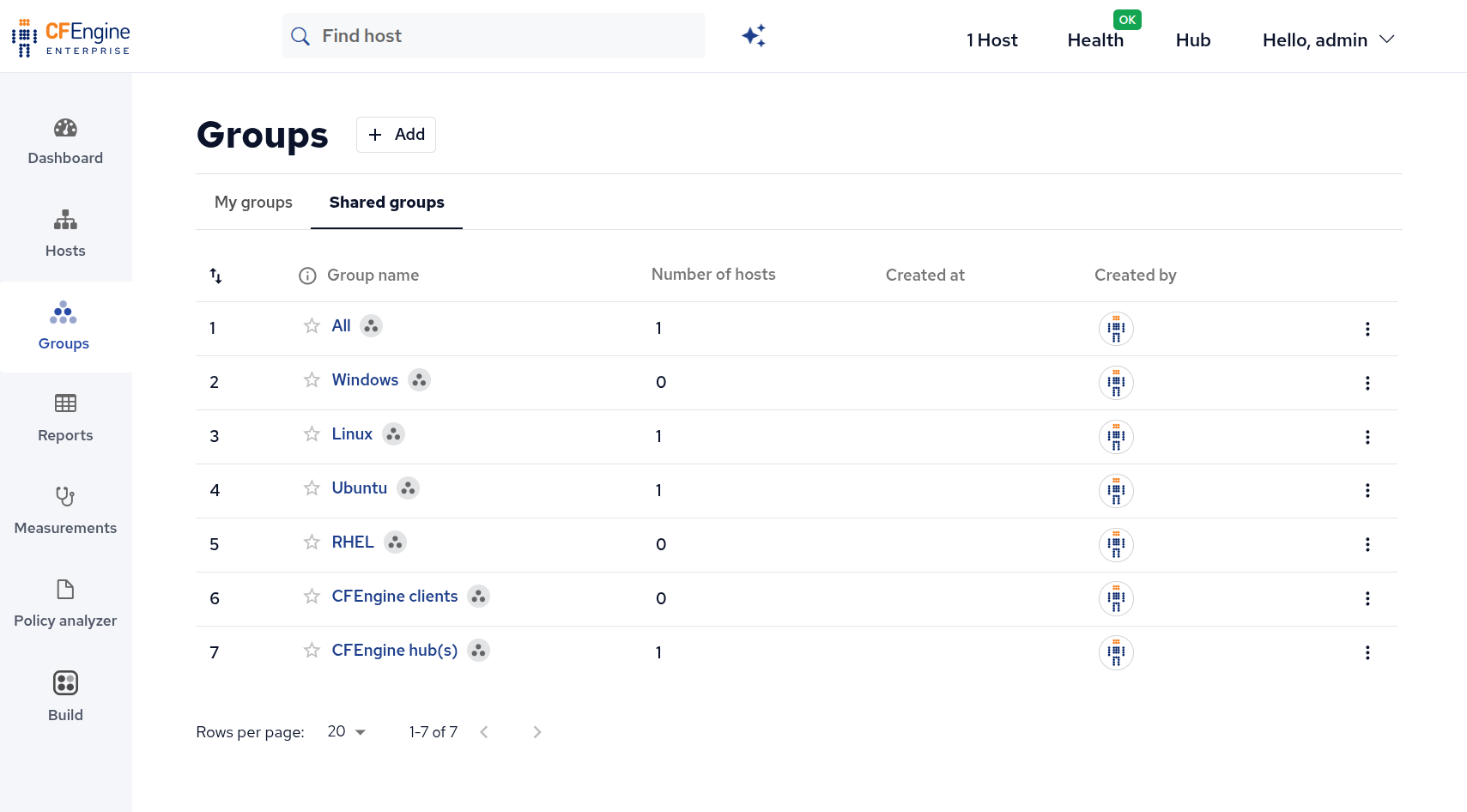
One way to define the class is through the Groups app in Mission Portal. Select an existing group or create a new one. Here, we’ll select the All group so that Ansible is installed on every host.
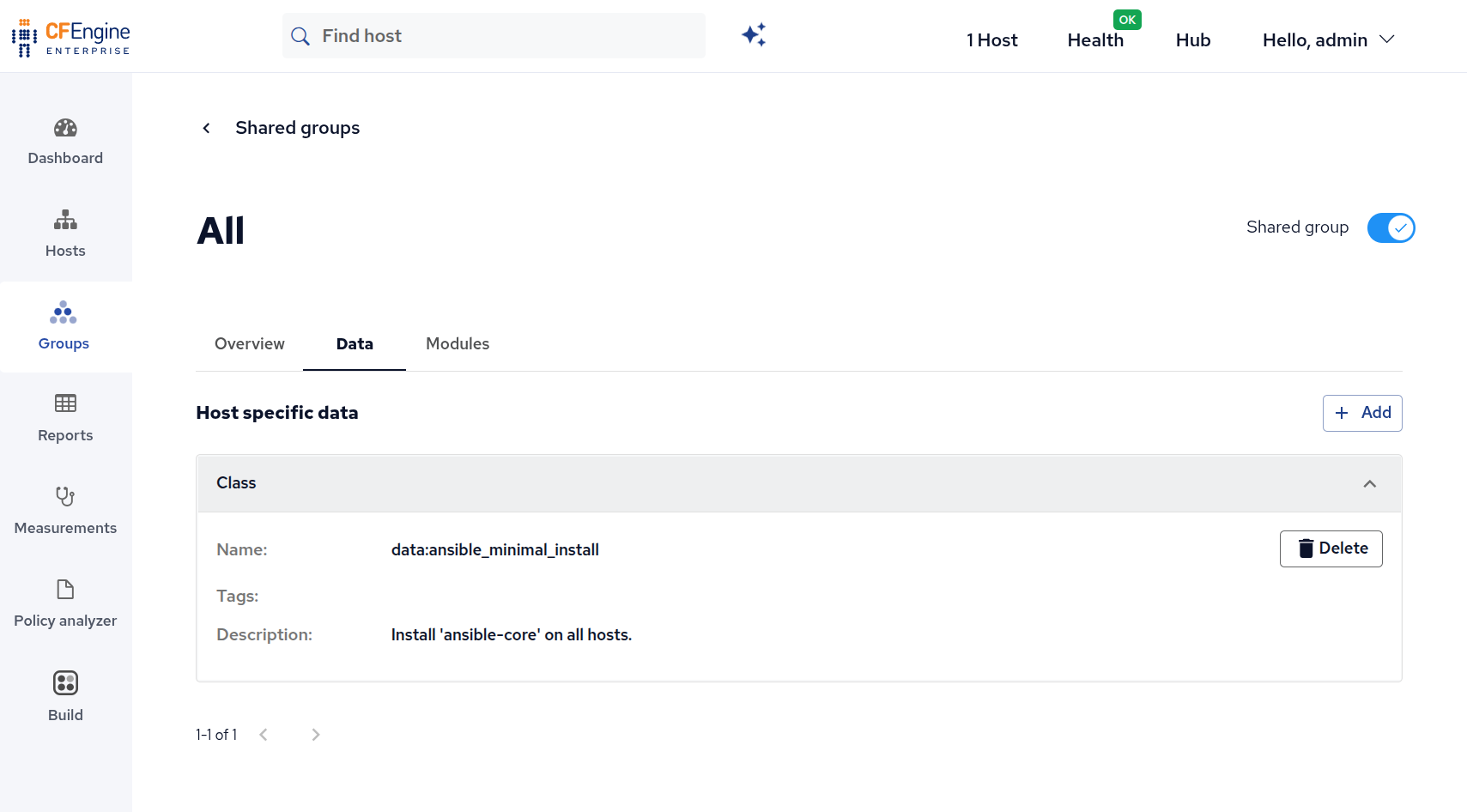
Click the Data tab, then click Add.
Choose Class as the type and enter data:ansible_minimal_install as the name.
Optionally, add a suitable description and tags.
Once saved, Ansible will be installed on all hosts in the group during their next agent run.
Running a playbook
We’re now ready to run Ansible playbooks.
Note that the ansible-playbook-dispatcher module requires cfbs 5.8.0 or newer, which is bundled with CFEngine 3.29 and later.
If you’re on an older version, you can use the run-ansible-playbooks module instead.
However, it doesn’t distribute the playbooks to your hosts, so you’ll need to do that another way, for example with CFEngine policy.
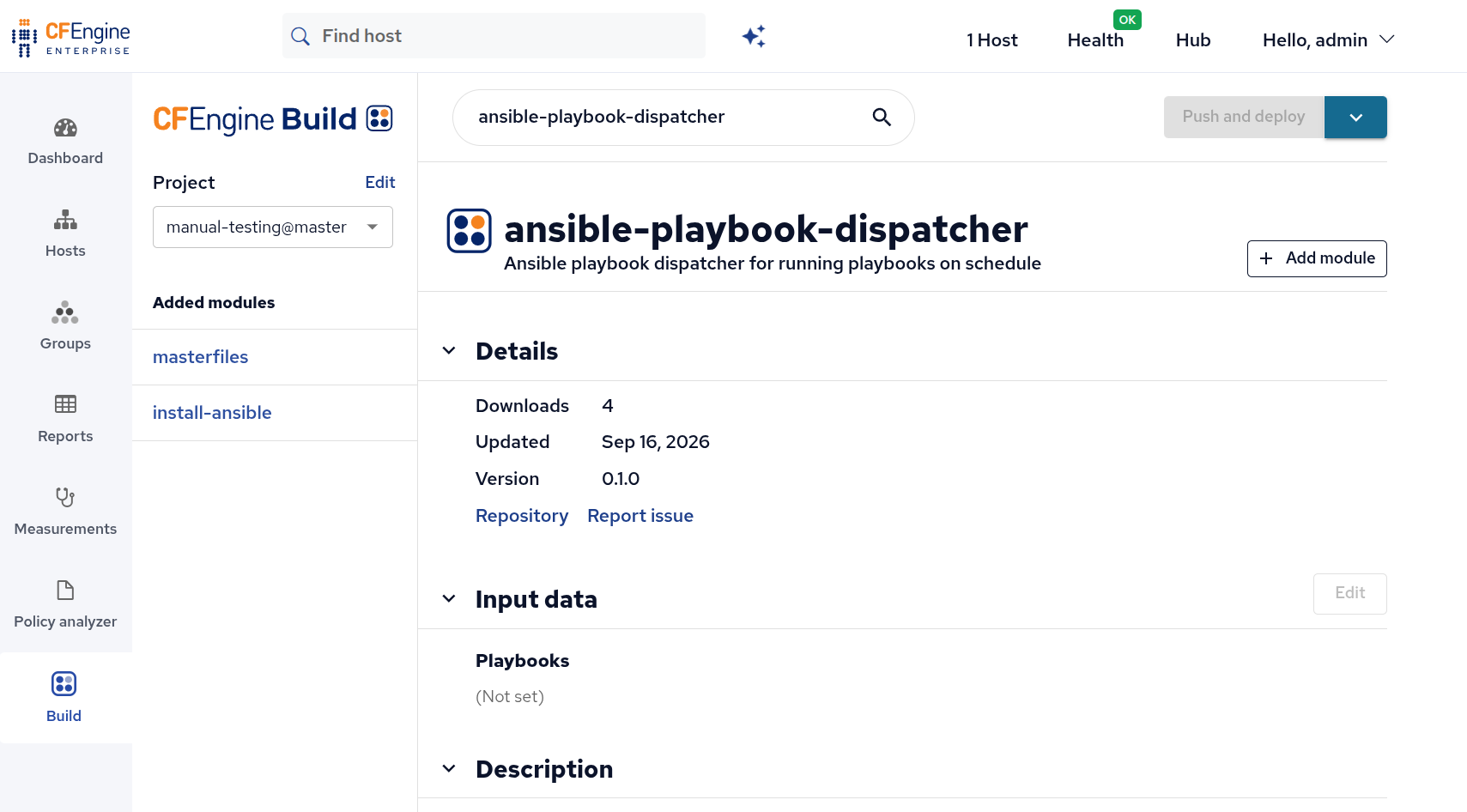
Go back to the Build app, search for ansible-playbook-dispatcher, and select the first result.
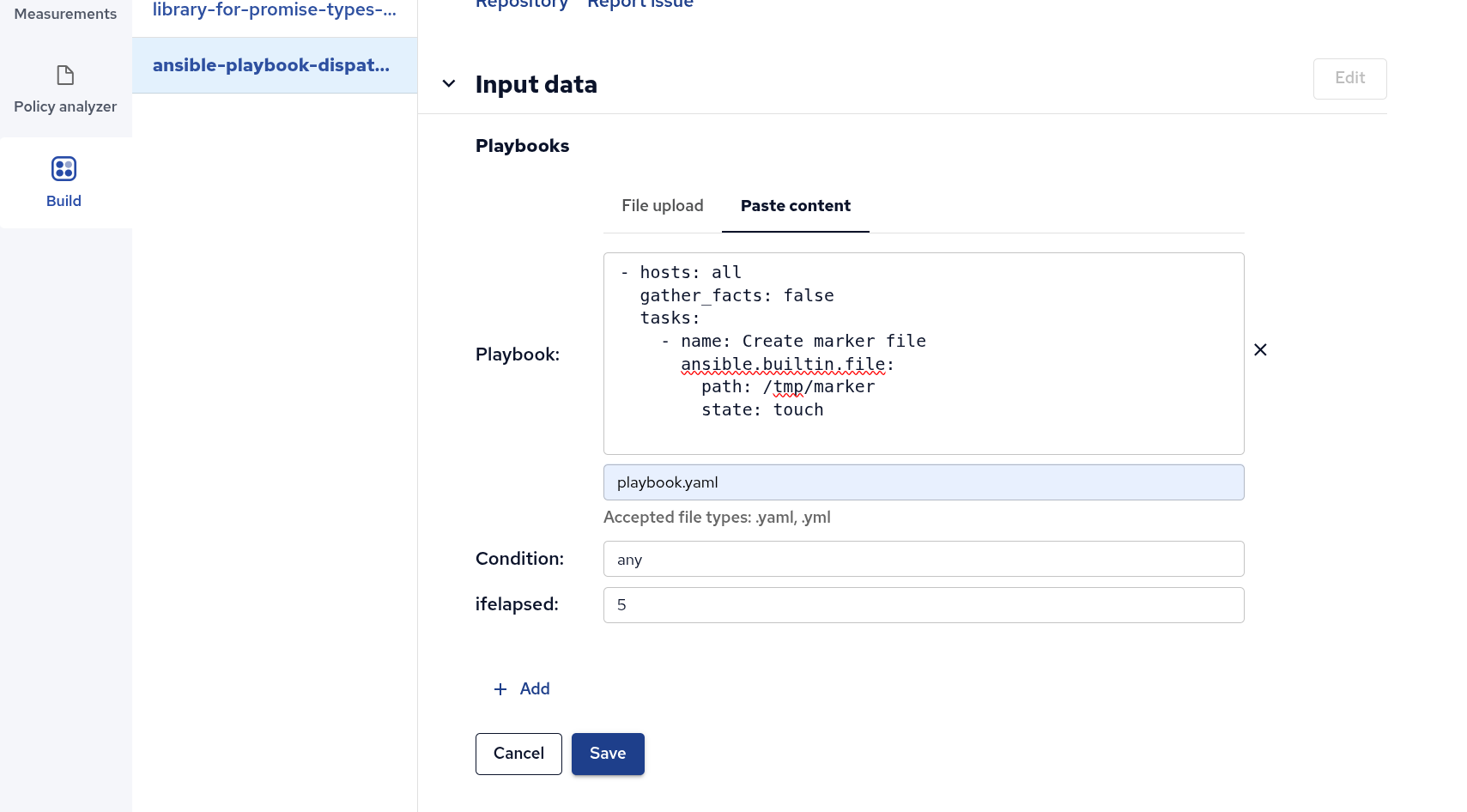
Under Input data, click Edit. You can either upload a playbook file or paste its contents directly. Here, we’ll choose Paste content. Paste your playbook under Playbook and give it a filename. Use Condition to set when the playbook should run based on a CFEngine class expression. Use ifelapsed to set the minimum time between runs, in minutes. When you’re done, click Save. On the next agent run, CFEngine will copy the playbook to every host, but only run it where the condition is true.
Verifying the results
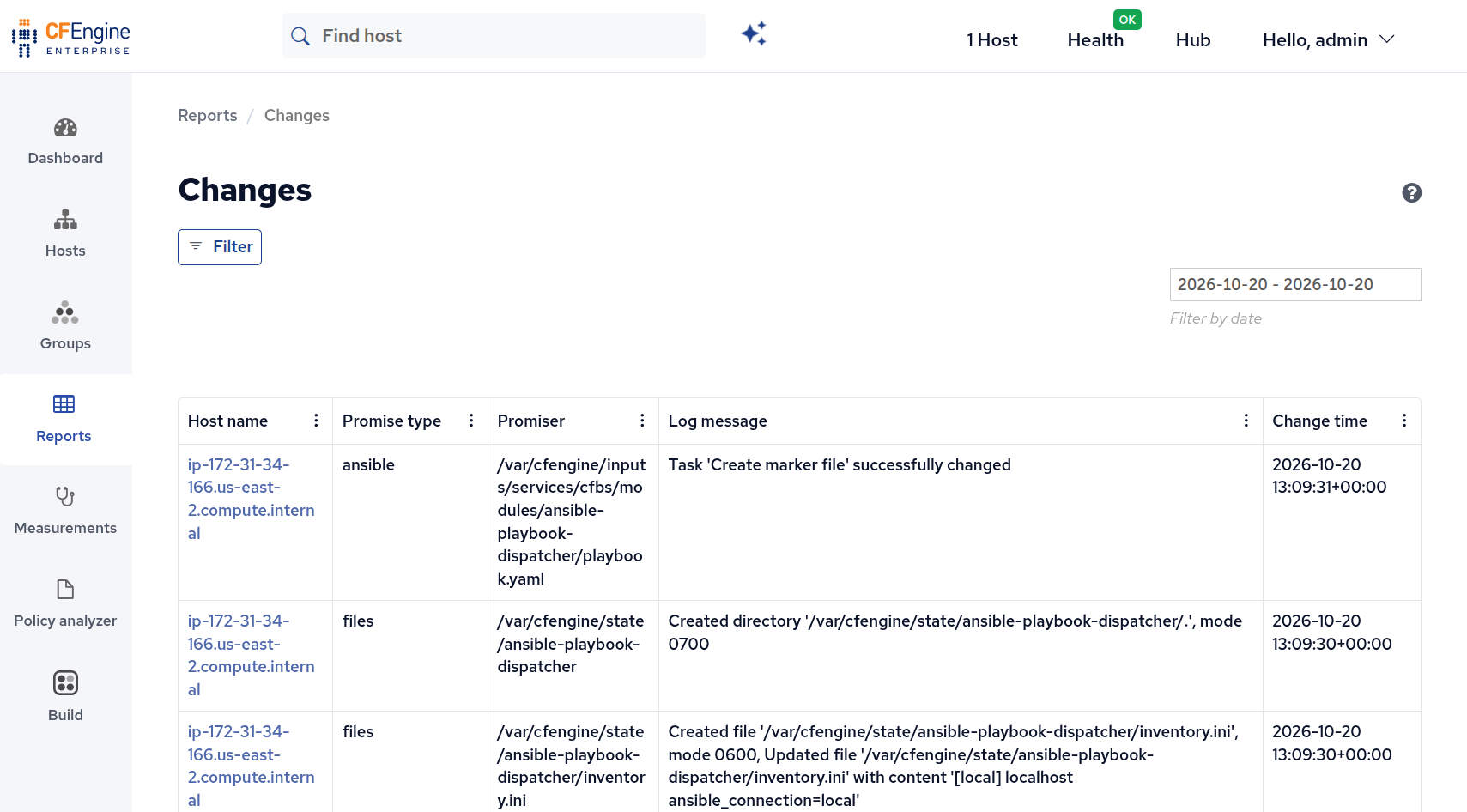
To verify that the playbook is running, open the Reports app and click Changes.
You should see entries from ansible-playbook-dispatcher.
If other changes make these hard to find, add a filter where Promise type is ansible.
Wrapping up
That’s all it takes to run Ansible playbooks on CFEngine-managed hosts.
With the install-ansible and ansible-playbook-dispatcher Build modules, CFEngine distributes your playbooks, uses classes to decide when they run, and reports the results in Mission Portal.
This lets teams keep using the tools they prefer, while managing everything from one place.
If you try this out, we’d love to hear how it goes on GitHub Discussions.


