




The CFEngine policy language is battle-tested and proven to be an effective and efficient way of describing how you want your systems to be configured. The language does take some time to get used to so we had the idea of creating a visual editor for policy to aid in getting things done and learning the language. The result: Policy Builder (Beta).
Today we showed how to install it, took the demo policy for a spin, fixed a few problems and started from scratch to manage MacOS Remote Desktop for a headless Mac mini I recently purchased so I had a machine with Apple Silicon due to everyone’s favorite package manager: homebrew dropping support for intel Macs.
Downloading and installing
Download Policy Builder from its GitHub releases page.
Each release has a .deb, .rpm and AppImage for Linux, a .dmg and .zip for macOS, and an .exe installer for Windows.
The first time you open Policy Builder on macOS, macOS asks to confirm opening an app downloaded from the internet: click Open.
Does and Doesn’t (for now)
Policy Builder does enable even novices to put together a policy by using graphical elements. It does not currently have the ability to take an existing policy and translate it into a graphical representation.
Overview
The main view is the Canvas. Here you see a list of Blocks and Configurations on the left, Properties on the right and in the middle your policy.
By dragging Blocks into the middle you develop your policy, adjusting Properties as needed.
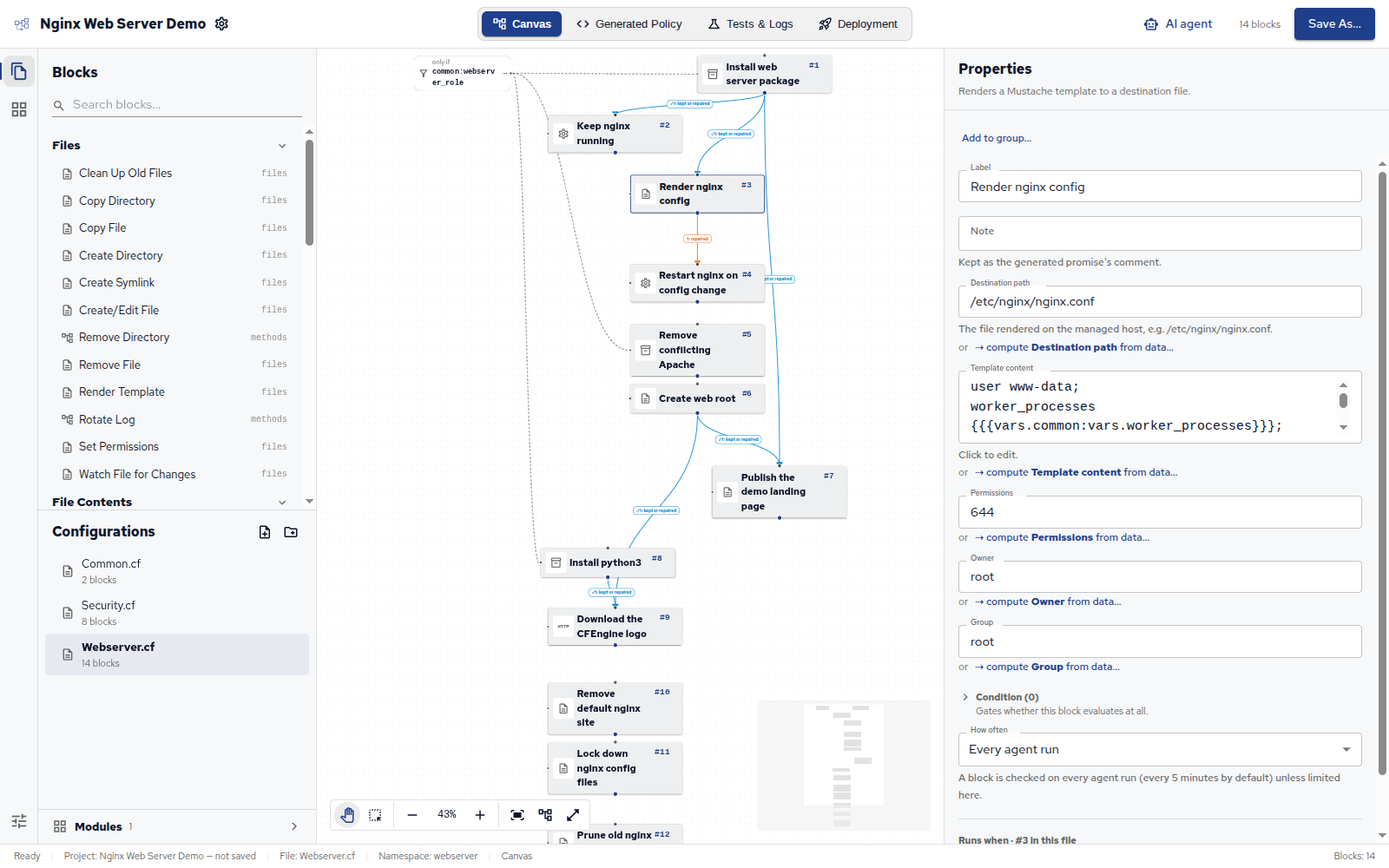
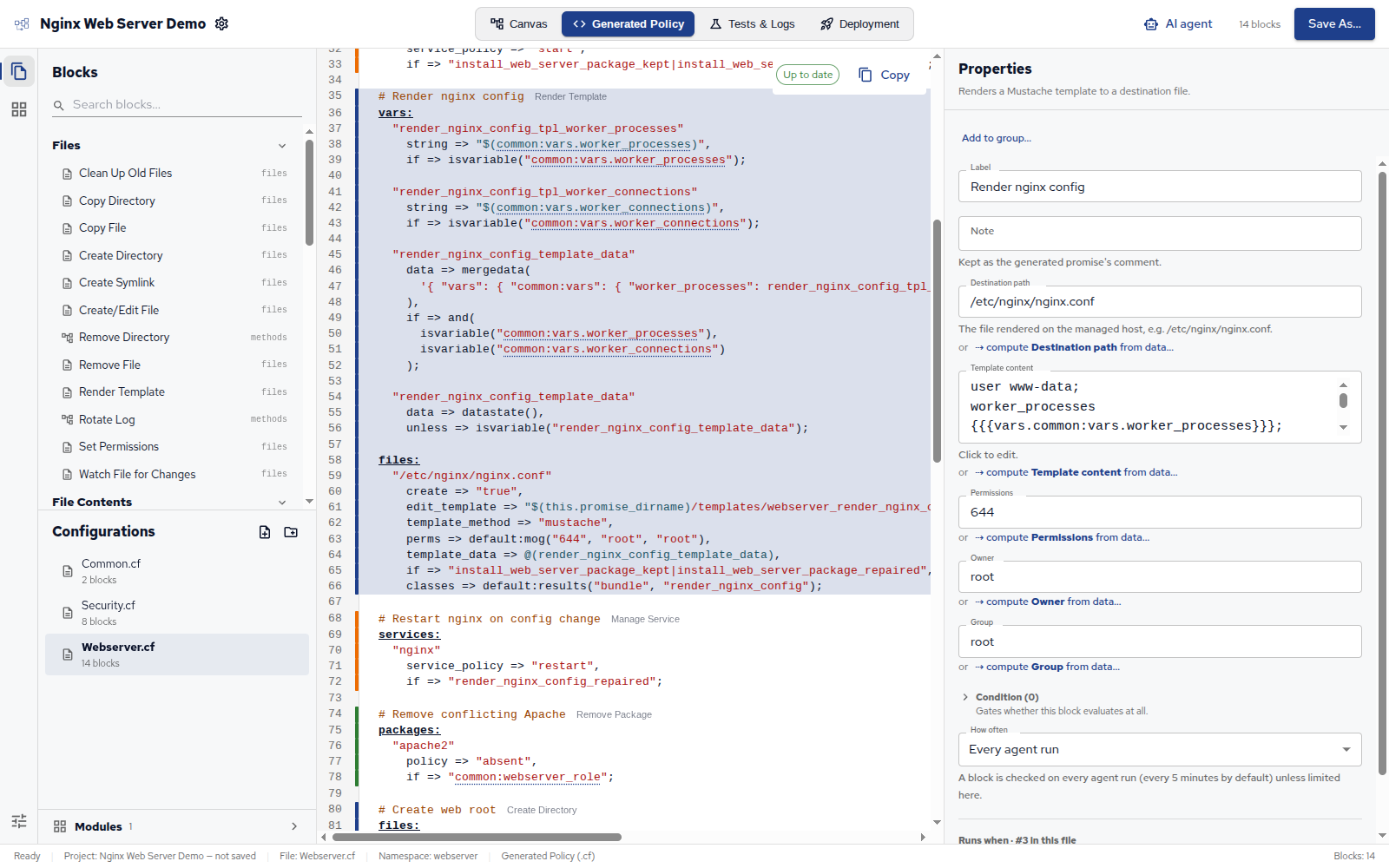
Also present are tabs for Generated Policy, Tests & Logs and Deployment.
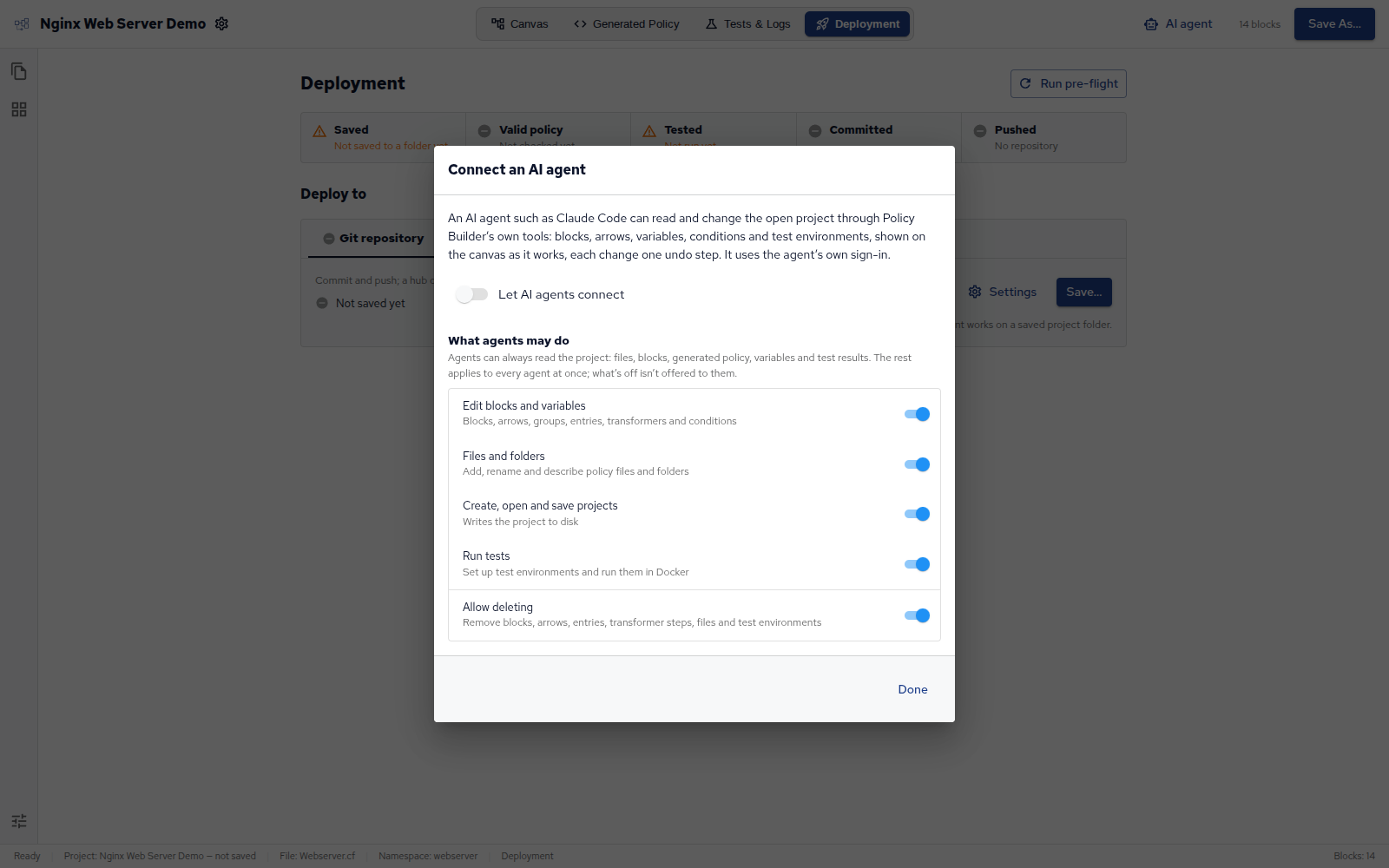
You can click on AI agent and start an MCP server to use with many different AI agent providers.
Blocks
In the Properties for Blocks you can specify the thing act upon such as a file path, values, conditions, permissions and what external triggers might cause this Block to evaluate.
Demo Project - Nginx Web Server
Craig walked through the contents of the provided demo project to configure nginx and harden the hosts.
Testing and Fixing issues
Policy Builder manages and orchestrates running the built policy in a hub container and several other client containers which enables you to ensure that the policy works on different Linux distributions and versions.
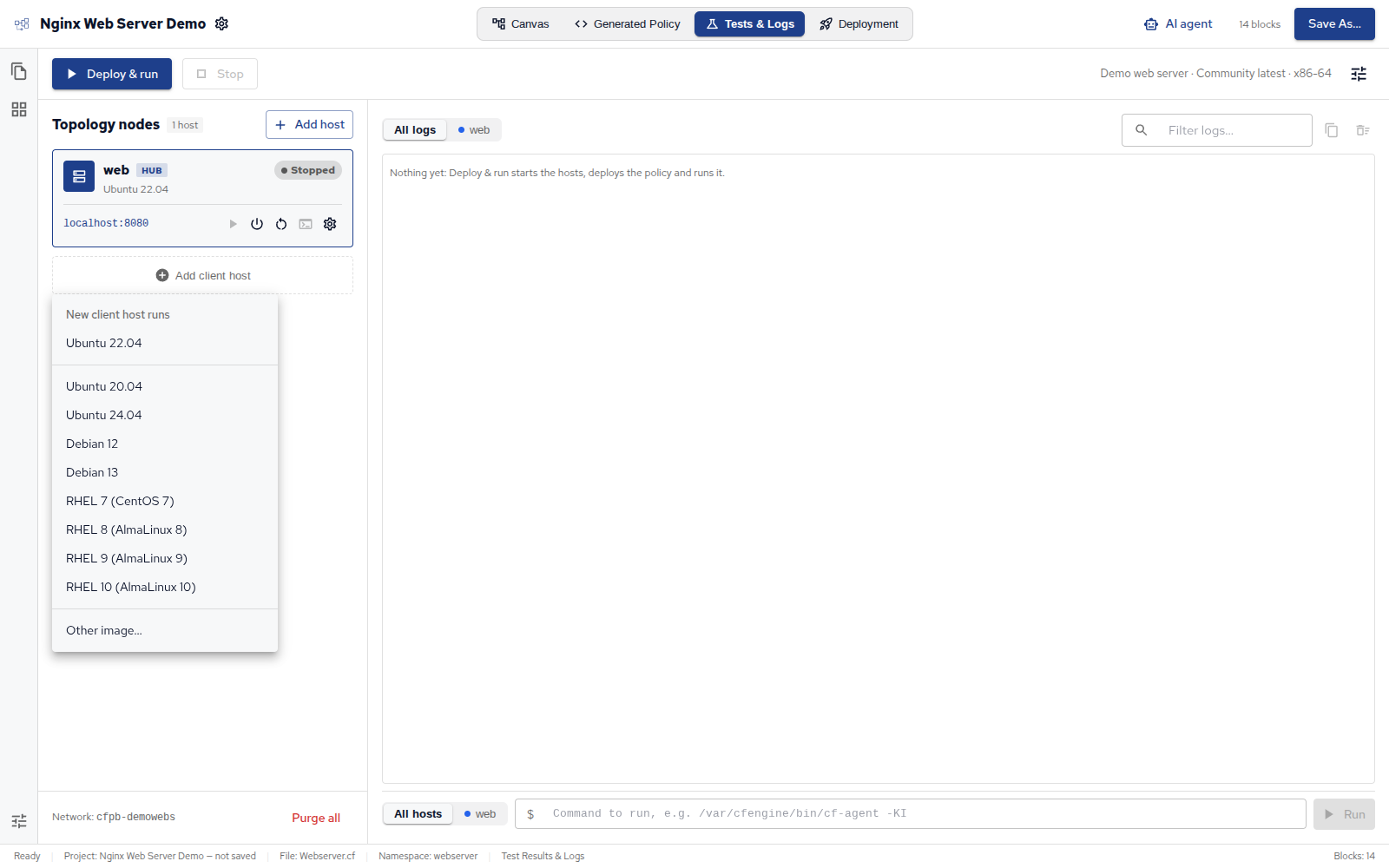
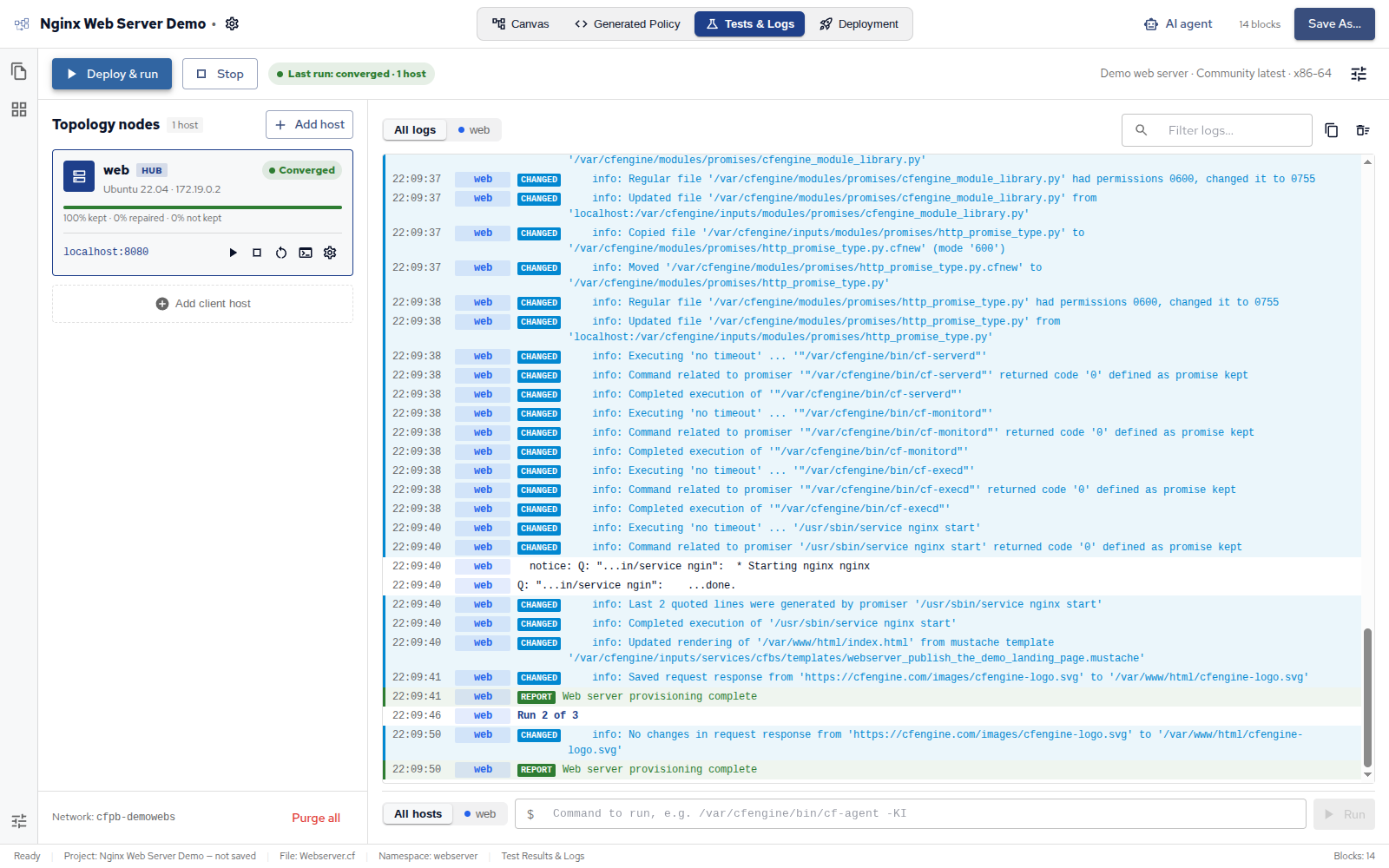
In the demo project a few portions of the policy break in Alma 8 Linux. One of these problems Craig fixed manually in the Canvas by adding a conditional name of the python package for both redhat systems and non-redhat systems.
The other problem was solved by asking a Claude AI agent to solve the problem. The AI agent makes changes, runs on the containers, fixes any issues and prompts the user if they want to save the changes.
Deployment workflow
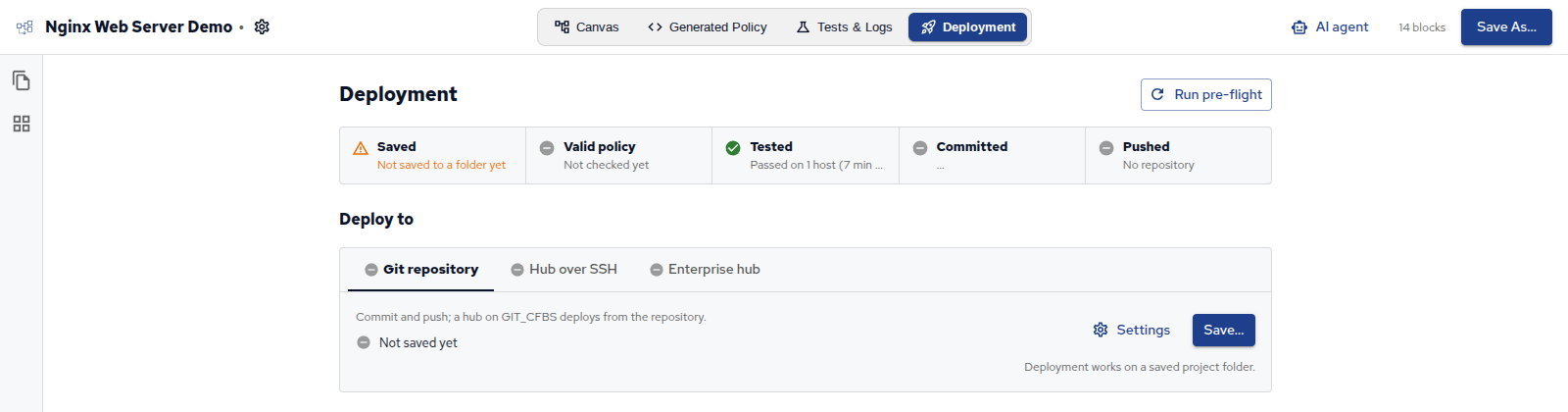
The Deployment tab walks you through reasonable steps from validation of policy, tests passing, changes are committed and finally pushing the changes to either a git repository or a Hub over SSH or with API access.
Video
The video recording is available on YouTube:
At the end of every webinar, we stop the recording for a nice and relaxed, off-the-record chat with attendees. Join the next webinar to not miss this discussion.
Links
- Connect w/ Cody, Craig, or Nick
- Policy Builder github repository
- Policy Builder releases
- All Episodes


